


You need working internet, not another box to unpack.
Imagine the first evening after a move. Boxes were still stacked in the hallway, someone needed WiFi for work the next morning, and every phone, laptop, television, and smart device was waiting to connect. The router powered on, but the upstairs office had almost no signal.
Along with unpacking and checking your utilities, setting up WiFi is one of the first things to do after moving into a new home.
A working connection is only the first step. It also needs to reach the places where you actually use it.
A little preparation can prevent activation delays, equipment problems, weak coverage, and hours spent restarting devices.
Start with what is available at the new address, then build the network around your household, home layout, and daily internet use.
Key Takeaways
✓ Confirm real service availability at the exact address before moving day.
✓ Match the plan to your household’s actual usage, not just the top advertised speed.
✓ Connect the modem to the WAN port, not a numbered LAN port, on the router.
✓ Place the router centrally, elevated, and away from metal, concrete, and interference.
✓ Change both the WiFi password and the administrator password during setup.
✓ Use WPA3 or WPA2 with AES, never WEP or older WPA.
✓ Connect devices in priority order so problems are easier to isolate.
✓ Test speed and coverage room by room, not just beside the router.
Things to do Before Setting Up WiFi in Your New Home
The best time to arrange internet service is before the moving truck arrives.
A router cannot establish an internet connection on its own. You first need active service from an internet service provider, or ISP, at the exact property.
Check Which Internet Providers Are Available at Your Address
Internet availability can change from one street to the next. A provider may advertise service across a city but lack the cable, fiber, or wireless coverage needed for your specific home.
Enter the full service address on each provider’s official availability page. It is also worth contacting the provider directly when:
- The home is newly built
- The unit number does not appear online
- The property previously used a different provider
- The address is in a rural area
- The online checker gives an unclear result
Decide Whether to Transfer Your Existing Internet Service or Get a New One
A service transfer is easier, but it is not automatically the best choice.
| Question | A Transfer May Work | A New Provider May Be Better |
|---|---|---|
| Does the current ISP serve the new address? | Yes, with a comparable plan | No, or only with a much slower plan |
| Is your current price competitive? | The price and terms remain reasonable | The promotional rate ends, or fees increase |
| Is the equipment compatible? | The ISP confirms it can be reused | New technology or equipment is required |
| Is the installation available on time? | Activation can happen before move-in | Another provider can connect the home sooner |
| Are you under contract? | The transfer avoids a cancellation charge | Savings outweigh any cancellation cost |
| Does the plan fit the new home? | The speed and coverage needs are similar | The new household needs more capacity |
Choose the Right Internet Plan for Your New Household
Do not choose a plan based solely on the largest advertised number.
Start by asking how the connection will be used. A household that checks email and streams one television has different needs from a family running video calls, cloud backups, security cameras, gaming systems, and 15 smart devices at once.
Compare these plan details:
- Typical download speed
- Typical upload speed
- Monthly price
- Introductory price and its end date
- Equipment rental charges
- Installation or activation fees
- Data allowances
- Overage charges
- Contract requirements
- Early cancellation terms
- Expected latency
- Customer-owned equipment rules
Schedule Installation or Self-Installation
Providers generally offer either a technician appointment or a self-installation option.
A self-installation kit works when the property already has an active line, and the equipment only needs to be connected and activated.
The physical setup can be completed in less than an hour, but account activation and troubleshooting may take longer. It's also a good idea to add your internet installation date to your moving checklist so you don't forget it while preparing for the move.
A technician is necessary when:
- No active line enters the home
- A fiber terminal must be installed
- The existing outlet does not work
- Exterior wiring needs attention
- The provider requires professional activation
- The home has never received service from that company
WiFi Equipment and Essentials You'll Need
This WiFi setup for a new house or apartment checklist covers the essentials before you plug anything in.
Gather these items in one place:
- Modem or gateway: A device supplied or approved by your internet provider. Fiber connections may use an optical network terminal (ONT).
- WiFi router: A router to provide wireless internet throughout your home, unless your gateway already has one built in.
- Required cables: The correct connection cables for your internet service, such as coaxial, Ethernet, or telephone cables.
- Power outlets: Accessible outlets to connect your modem and router.
- ISP account details: Your internet provider's account information and any activation instructions.
- Smartphone or computer: A device to configure your WiFi network and check the connection.
- Router login details: The router's administrator information, along with the setup instructions or app if needed.
- WiFi network name and password: A name you want to use for your network and a strong password to keep it secure.
How to Set Up Wi-Fi in a New Home (Step-by-Step)
Once you have all the necessary equipment ready, you can start setting up WiFi in your new home.
Follow the steps below to get your internet connection working and make sure you have a reliable WiFi signal throughout your home.
Step 1: Install and Activate Your Internet Connection
Locate the wall connection or provider equipment.
Cable service commonly uses a coaxial outlet. DSL may use a telephone-style connection. Fiber service enters through an optical network terminal. Fixed wireless, satellite, and 5G services use equipment supplied or approved by the provider.
Connect the equipment according to the ISP’s instructions, then complete activation through its app, website, or support line.
WATCH OUT
If the home has no active line, contact the ISP. Repeatedly reconnecting the router will not fix a missing or unprovisioned service connection.
Step 2: Connect the Modem and Router
For separate equipment, use this order:
- Connect the modem to the active wall connection.
- Connect the modem to power.
- Wait for it to establish a connection with the ISP.
- Run an Ethernet cable from the modem to the router’s WAN or Internet port.
- Connect power to the router.
- Wait for the router’s status lights to stabilize.
Important Info
The router’s WAN port is built to accept an incoming connection from outside the home, while the numbered LAN ports are built to hand a connection out to your devices. Plugging the modem into a LAN port by mistake feeds the internet signal into the wrong side of that logic, so the router never recognizes it as a source.
Step 3: Place Your Router in the Best Location
Router placement affects coverage more than many people expect.
Aim for a location that is:
- Near the center of the home
- Elevated on a shelf or table
- Open and well-ventilated
- Away from large metal objects
- Away from thick concrete or masonry barriers
- Outside cabinets and closed entertainment centers
- Separated from microwaves and other possible sources of interference
Note: Do not stack the router on a game console, television receiver, or other heat-producing device. It needs airflow.
FOR EXAMPLE
Suppose the modem connection is in the front room of a two-story house, but most internet use happens upstairs and toward the back. A longer Ethernet cable may allow the router to sit in a more central position. A mesh node may be a better solution when moving the main router is not practical.
Step 4: Access the Router Setup Page or Mobile App
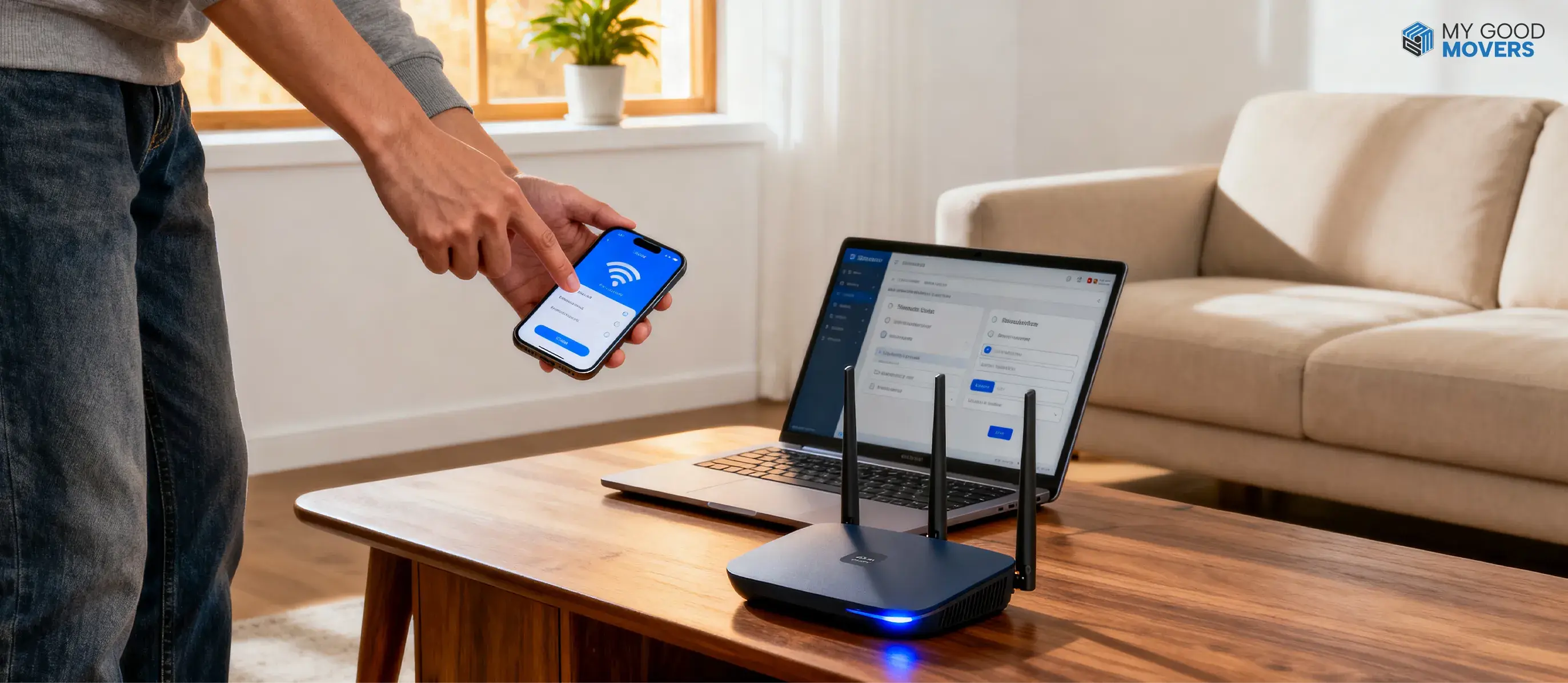
Many modern routers use a manufacturer’s mobile app. Others provide a web-based administration page.
Connect a phone or computer using:
- The default WiFi details printed on the router label
- A temporary setup network
- An Ethernet cable
The instructions may list a local web address or a numeric address. Common router addresses exist, but they are not universal. Use the address printed on the equipment or provided by the manufacturer.
Change the default administrator password during setup.
Remember that the router may have two separate passwords:
- WiFi password: Connects phones, computers, and other devices to the network.
- Administrator password: Opens the router’s settings.
GOOD TO KNOW
The FTC recommends changing both default network and administrative credentials during setup, not just the one you notice first.
Step 5: Create Your WiFi Network Name
The WiFi network name is also called the SSID (Service Set Identifier). It is the name people see when they open the device's WiFi menu.
Choose something easy for your household to recognize but difficult for strangers to connect to you personally.
Avoid including:
- Your full name
- Street address
- Apartment number
- Phone number
- Router brand and model
- Information that reveals who lives in the home
WHY IT MATTERS
Many routers can use a single SSID across multiple frequency bands and automatically direct compatible devices. This feature is called band steering. Separate names give you more manual control over which band a device joins, but one shared name is simpler for most households and still lets the router make that decision in the background.
Step 6: Set a Strong WiFi Password and Enable WPA3 or WPA2 Security
Choose a long, unique passphrase that is not reused for email, banking, or another account.
A series of unrelated words can be easier to remember than a short string of random characters, provided the phrase remains long and unique. Follow the router manufacturer’s password requirements.
Select:
- WPA3 Personal when supported by the router and devices
- WPA2 Personal with AES when WPA3 is unavailable or causes compatibility problems
WATCH OUT
Do not use WEP or older WPA security. The FTC and CISA recommend WPA3 or WPA2 for home networks and advise replacing equipment that cannot support the current secure option after updates are installed.
Extra Security Checklist
✓ Change the router administrator password.
✓ Install firmware updates.
✓ Turn off remote administration unless you need it.
✓ Use a guest network for visitors.
✓ Consider placing smart cameras and other connected devices on a separate network when the router supports it.
✓ Disable features you do not use.
Step 7: Update Your Router Firmware
Firmware is the software that runs inside the router.
Updates can fix security weaknesses, improve stability, and resolve compatibility problems. Open the router app or administration page and check for an update. Enable automatic updates when the equipment offers a reliable option.
The FTC recommends checking for current router software during setup and keeping the device updated afterward.
WATCH OUT
Do not unplug the router while an update is installing. The device may restart multiple times, and interrupting the process can cause problems.
Step 8: Choose the Best WiFi Band: 2.4 GHz, 5 GHz, or 6 GHz
Each WiFi band has a different balance of range, compatibility, and capacity.
| WiFi Band | General Strength | Common Limitation | Often Useful For |
|---|---|---|---|
| 2.4 GHz | Longer reach and broad device support | More congestion and lower potential performance | Smart devices and rooms farther away |
| 5 GHz | Strong performance at moderate range | The signal weakens more with distance and barriers | Streaming, work, and gaming near the router |
| 6 GHz | Additional spectrum for compatible newer devices | Shorter practical reach and limited older-device support | High-capacity use near a compatible router or mesh node |
Step 9: Connect All Your Devices to the WiFi Network
Do not connect every device at once.
Start with the equipment you need first:
- Work computer and essential phones
- Security system, smart locks, and cameras
- Streaming devices
- Gaming consoles
- Smart-home equipment
- Printers and lower-priority devices
DEVICES FROM YOUR OLD HOME
If you're trying to connect to Wi-Fi after moving and a device keeps searching for a network that no longer exists, that's usually the old home's SSID still saved in memory. Open the device settings, forget the previous network, and select the new one instead of waiting for it to reconnect on its own.
Step 10: Test Your Internet Speed and WiFi Coverage in Every Room
A single speed test next to the router does not tell you how the network performs throughout the house.
Use this room-by-room method:
- Turn off large downloads and unnecessary streaming.
- Test close to the router.
- Record download speed, upload speed, and latency.
- Repeat the test in the home office.
- Test bedrooms, basement, living room, garage, and outdoor areas where WiFi is needed.
- Repeat a weak result once or twice.
- Compare WiFi performance with an Ethernet-connected device when possible.
- Test during more than one part of the day if performance changes noticeably.
Got This Utility Covered? Check the Rest
Transferring one service is only part of the process. See how to handle other utilities before you move.
How to Transfer Utilities When MovingTroubleshoot Common WiFi Setup Problems
If your WiFi isn't working properly after setup, don't worry. Most problems can be fixed with a few simple checks.
Here are some common WiFi issues and how to fix them.
| WiFi Problem | How to Fix It |
|---|---|
| Internet isn't working after setup | Check that your modem is powered on, all cables are connected, and your internet service is activated. Also, check for an ISP outage. |
| Router shows no internet connection | Make sure the Ethernet cable is connected to the router's WAN or Internet port. Restart the modem and then the router. |
| WiFi network doesn't appear | Restart your router, turn WiFi off and on from the device, and move closer to the router. Check that the WiFi network is enabled. |
| Slow WiFi speeds | Move the router to an open, central location. Pause large downloads, disconnect unused devices, and run a speed test. |
| Devices keep disconnecting | Restart the router, update its firmware, and check whether the device stays connected when you're closer to the router. |
| Weak WiFi signal in some rooms | Move the router to a higher, central spot. If the signal is still weak, consider a mesh WiFi system or extender. |
| Internet service won't activate | Check your account and activation details. Contact your internet provider if the connection still isn't active. |